
Workspace settings
Open Tools → Workspace Settings… or use the settings action in the left navigation rail. Settings are global to this GDDKit installation, not stored in the open project.
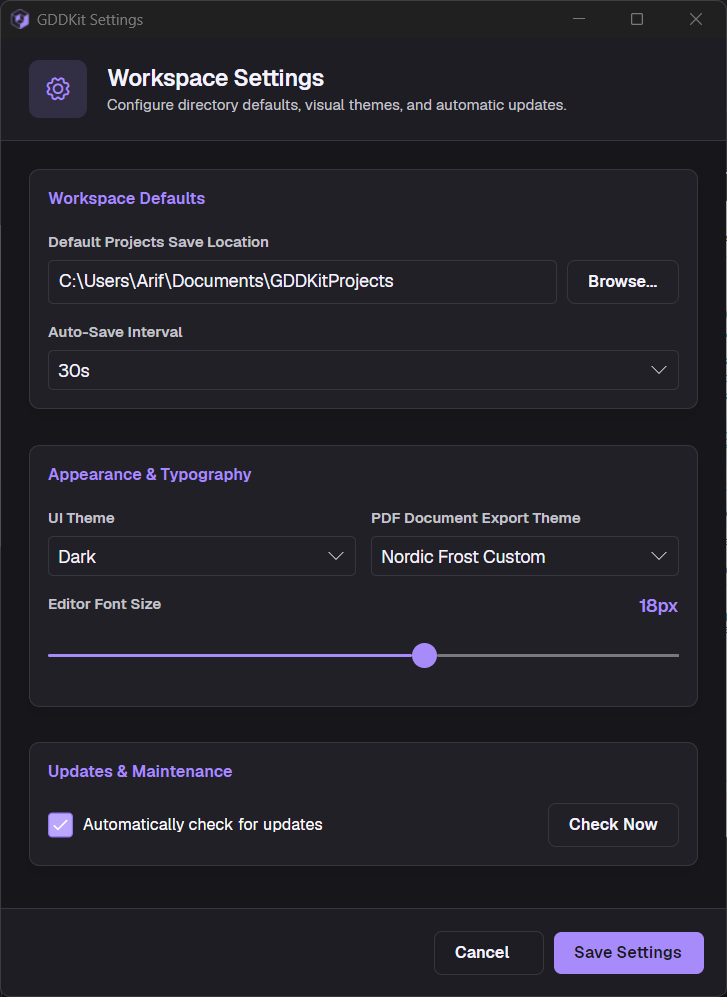
Available settings
Default save folder
The initial destination for new .gddkit projects. The default is a GDDKitProjects folder under Documents.
Use the folder picker. When you save settings, GDDKit attempts to create a missing selected folder and reports an error if it cannot.
Changing this setting does not move existing projects.
Interface theme
Choose Dark or Light. The selection applies to the desktop workspace and updates the live Markdown preview. It does not set the exported PDF appearance.
Editor font size
Choose a value from 12 to 22. This changes Markdown editor text only; preview and PDF typography are controlled separately.
Autosave interval
Available values:
- 15 seconds;
- 30 seconds (the default);
- 1 minute;
- Off.
Autosave runs only while a project has unsaved changes. Off means you must save with Ctrl + S or choose Save when closing.
Default PDF theme
Choose any of the eight built-in styles or a saved custom style. This is the global active style used by Export GDD to PDF….
If a custom style has the same name as a built-in style, GDDKit labels it as a custom variant in the list. Manage the underlying design in the PDF Theme Designer.
Automatic update checks
When enabled, GDDKit silently checks its platform-specific update channel at startup. It does not install without asking: download and restart each require an explicit decision.
Development builds and raw publish output are not public update targets. If Check for Updates is unavailable in a release package, compare the version in About with the current official GDDKit downloads.
Where settings live
GDDKit uses the operating system’s local application-data GDDKit folder. It contains:
settings.jsonfor preferences, saved section presets, saved PDF styles, active style, and imported font metadata;recent_projects.jsonfor up to ten paths;Fonts/for copied custom PDF fonts.
On Windows the folder is %LOCALAPPDATA%\GDDKit. Close GDDKit before copying or restoring these files.
If settings do not persist
- Close GDDKit.
- Back up the entire local application-data
GDDKitfolder. - Confirm the account can write to that folder.
- Inspect whether security software or folder redirection is blocking writes.
- If
settings.jsonis malformed, rename the copied original and let GDDKit create defaults, then recreate preferences selectively.
Settings load and save errors can fall back silently, so a reset to defaults is often a file or permission symptom rather than a project problem.