
Mermaid diagrams
Mermaid turns text into a diagram. GDDKit bundles the Mermaid runtime, so ordinary diagram preview does not require a cloud service or Mermaid account.
Insert a diagram template
Select the Mermaid control in the Markdown toolbar, then choose one of eight starters:
- Flowchart
- Sequence Diagram
- Class Diagram
- State Diagram
- Entity Relationship
- Gantt Chart
- Pie Chart
- Mindmap
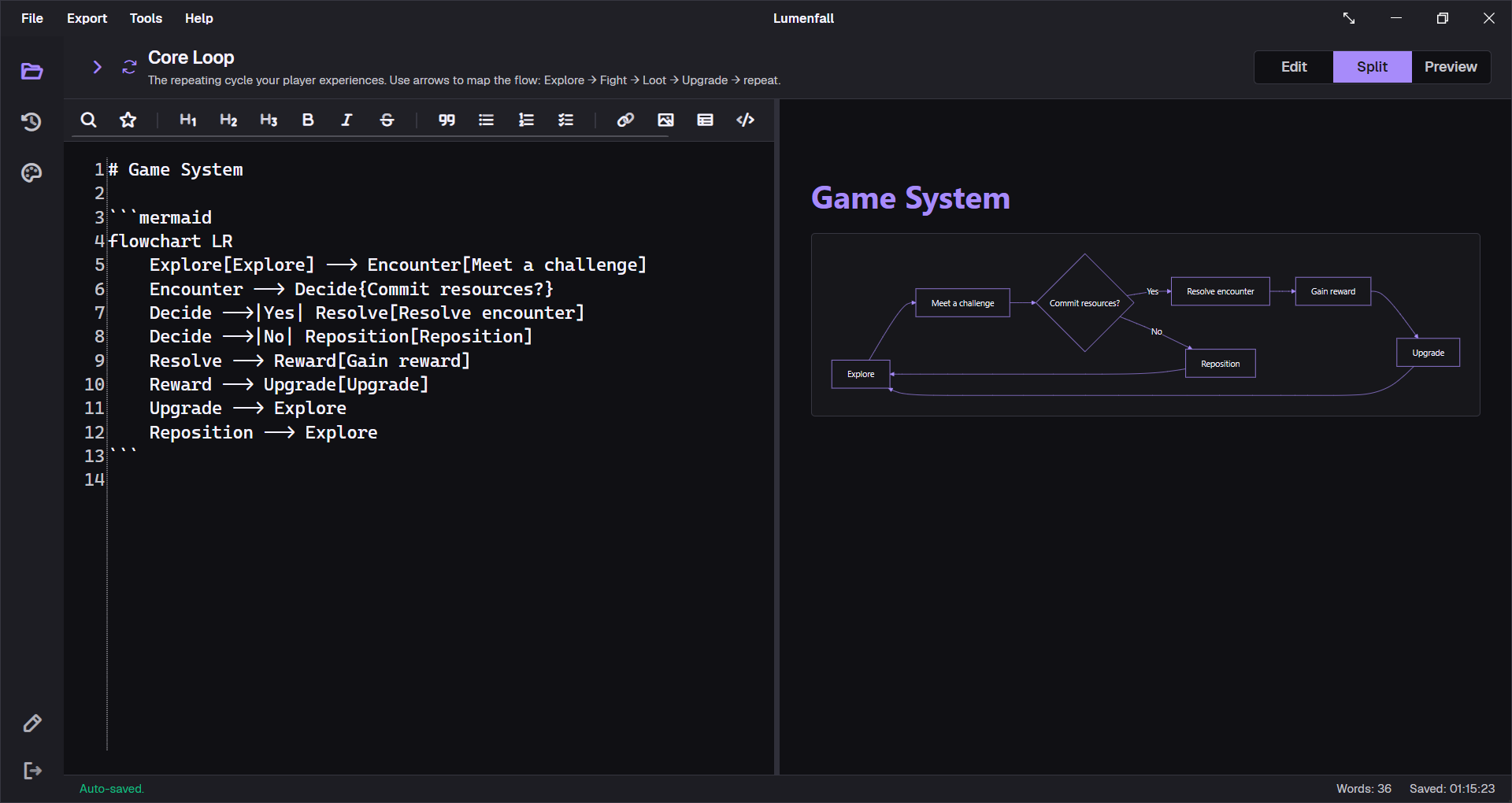
The editor inserts a fenced block. Edit the text while Split mode renders the diagram:
```mermaidflowchart LR Explore[Explore] --> Encounter[Meet a challenge] Encounter --> Decide{Commit resources?} Decide -->|Yes| Resolve[Resolve encounter] Decide -->|No| Reposition[Reposition] Resolve --> Reward[Gain reward] Reward --> Upgrade[Upgrade] Upgrade --> Explore Reposition --> Explore```GDDKit matches the language label without regard to case. Use lowercase mermaid for consistency with the toolbar templates and other Markdown tools.
Choose the right diagram
| Diagram | Good GDD use |
|---|---|
| Flowchart | Core loop, quest branches, menu flow, fail/recovery paths. |
| State diagram | Enemy AI, weapon state, player movement, UI screen states. |
| Sequence diagram | Client/server interaction, combat resolution, save/load messages. |
| Class diagram | Conceptual data ownership and system relationships. |
| Entity relationship | Economy, inventory, progression, content database design. |
| Gantt chart | Milestones, dependencies, production phases. |
| Pie chart | Small proportional summaries; avoid when exact comparison matters. |
| Mindmap | Early concept exploration, content taxonomy, narrative themes. |
Use diagrams to explain a relationship that would be slower to understand as prose. Follow each important diagram with a brief written interpretation so the design remains accessible and reviewable in fallback output.
State-machine example
```mermaidstateDiagram-v2 [*] --> Patrol Patrol --> Alerted: Player detected Alerted --> Attack: In range Attack --> Reposition: Player counters Reposition --> Attack Alerted --> Patrol: Player lost Attack --> [*]: Enemy defeated```Keep node labels concise. Put exact timing, tuning, and edge cases in a nearby table rather than forcing every rule into the diagram.
Preview and PDF behavior
- The live preview renders the block to SVG in the embedded WebView.
- PDF export asks a WebView renderer for a high-resolution image and places it in the A4 layout.
- A failed Mermaid render should not destroy the whole document: the PDF can show an error/fallback area and readable source instead.
- GDDKit 2.0.1 improves Mermaid PDF reliability on Linux and macOS.
If the diagram is mission-critical, inspect the exported PDF rather than treating the live preview as final proof.
Style diagrams in custom PDFs
The PDF Theme Designer exposes separate colors for:
- diagram background;
- node background and node text;
- connections;
- borders;
- cluster background.
These settings affect exported PDF diagrams, not Mermaid syntax. Check text contrast and line visibility against the actual PDF theme. See PDF Theme Designer.
Troubleshoot a diagram
- Confirm the opening and closing fences each use three backticks.
- Confirm the opening label names Mermaid; normalize it to lowercase
mermaidfor consistency. - Start from a toolbar template and change one line at a time.
- Avoid punctuation-heavy IDs; put human-readable text inside brackets.
- Check that every quote, bracket, and relationship is closed.
- If preview works but PDF fallback appears, update to the latest 2.x build and retry with a minimal diagram.
- On Linux, confirm WebKitGTK 4.1 is installed.
For a syntax error, reduce the block to two nodes and one edge, verify it, then reintroduce branches gradually.