
Workspace tour
The v2 workspace keeps document structure, writing, preview, and publishing tools in one window. Most actions are available from both the visual controls and the application menu.
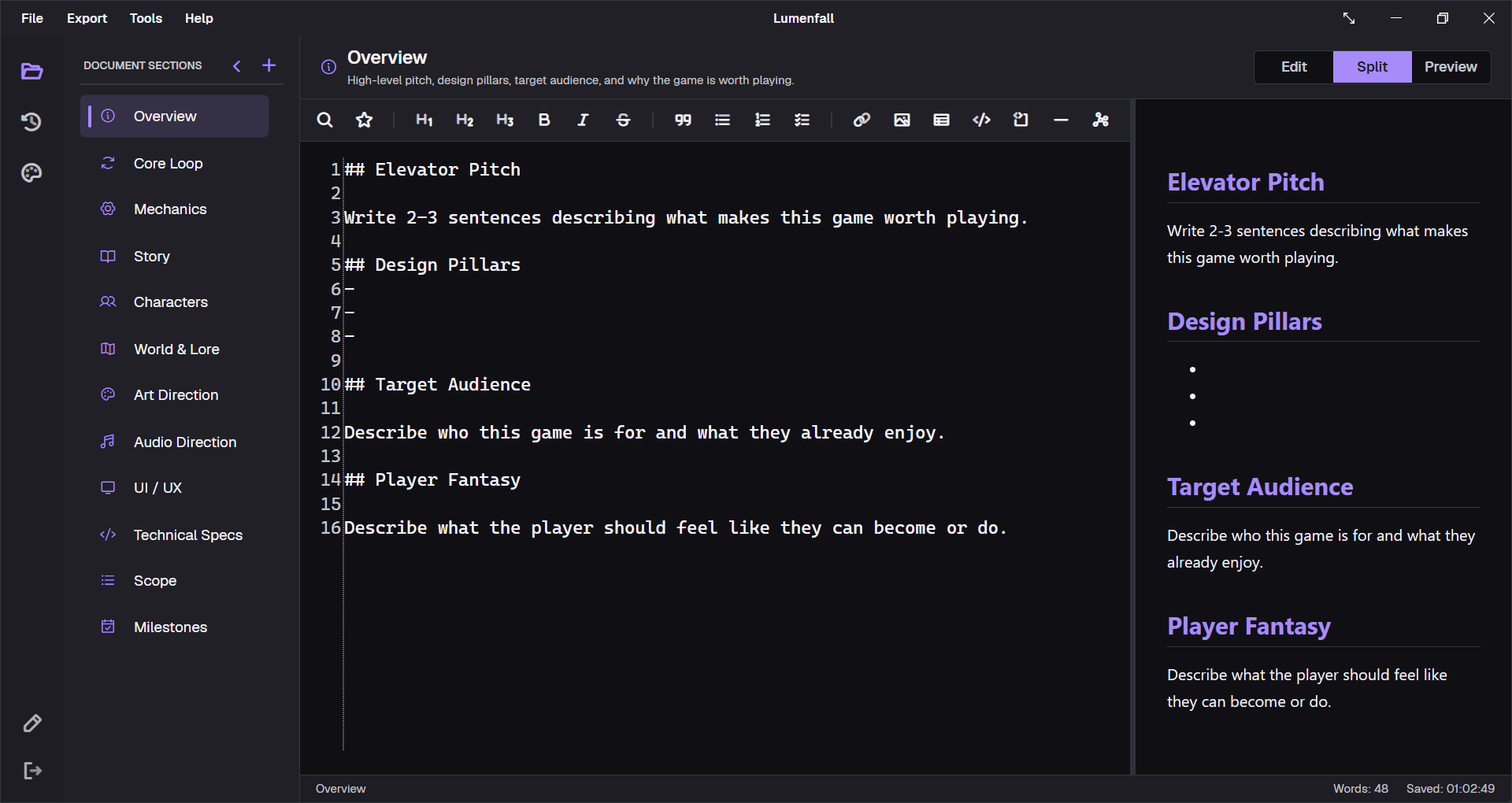
The workspace from left to right
1. Navigation rail
The narrow left rail changes the active workspace page:
- Sections returns to the writing workspace. Selecting it again can collapse or restore the section pane.
- Changelog opens the project version timeline.
- PDF Theme opens the PDF Theme Designer for global reusable export styles.
- Utility actions near the bottom open Workspace Settings, feedback, and application information.
Changing workspace pages does not close the project. Current section content is saved into the in-memory project model before relevant navigation and is written to disk on manual or automatic save.
2. Section pane
The section pane shows the document in export order. Select a section to edit it, drag it to change the order, or right-click for edit, save-as-preset, and delete actions. The add button opens built-in, saved, and blank section options.
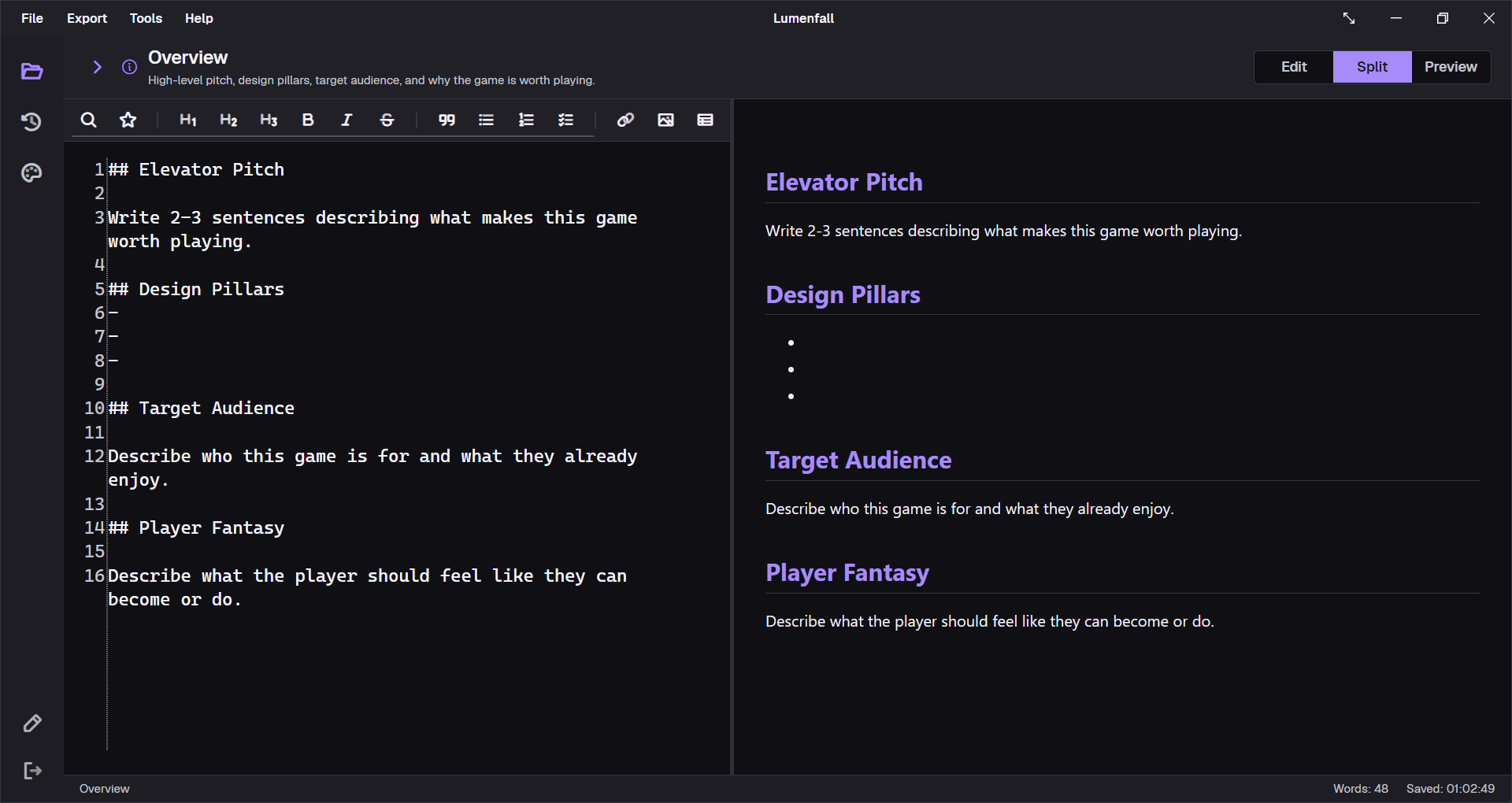
Collapse the pane when you need more horizontal writing space. The document structure remains unchanged.
3. Markdown editor
The text editor provides:
- line numbers and word wrapping;
- a formatting toolbar;
- current-section word count;
- keyboard editing shortcuts and a cut/copy/paste context menu;
- clipboard-aware image paste;
- a resizable split against the preview.
The word count covers the active section, not the entire project.
4. Live preview
The WebView preview renders advanced Markdown, local and remote images, and Mermaid diagrams. In Split mode, scrolling is synchronized by relative document position in both directions.
The preview is for authoring feedback. PDF uses a separate QuestPDF renderer, so always export a real PDF before delivery, especially when a section contains large tables, custom SVG, custom fonts, or Mermaid diagrams.
5. Status bar
The bottom bar shows the current section or latest status message, active-section word count, and last save time. An asterisk in the window title means the project has unsaved changes.
Edit, Split, and Preview modes
| Mode | Best for | Visible panes |
|---|---|---|
| Edit | Focused drafting on a smaller display | Editor only |
| Split | Writing while checking layout and diagrams | Editor and preview |
| Preview | Reading and visual review | Preview only |
Use the mode controls in the workspace or press Ctrl + E to cycle Edit → Preview → Split → Edit.
In Split mode, drag the divider to allocate width. Double-click the divider to return to an even split.
Saving and autosave
- Ctrl + S saves immediately.
- Autosave runs only while the project is dirty.
- The default interval is 30 seconds.
- Workspace Settings offers 15 seconds, 30 seconds, 1 minute, or Off.
- Closing a dirty workspace presents
Save,Discard, andCancelchoices.
Discard closes without writing the current unsaved changes. It is not an undo feature and does not restore an older saved revision.
Application menus
File
New Project…(Ctrl + N)Open Project…(Ctrl + O)Save Project(Ctrl + S)Close Workspace(Ctrl + W)Exit
Starting or opening another project first checks whether the current workspace has unsaved changes.
Export
Export GDD to PDF…Export GDD to Markdown…
There is no intermediate export-format panel. The active global PDF style comes from Workspace Settings or the PDF Theme Designer, then the command asks where to save the file.
Tools
Edit Project Details…Workspace Settings…
Help
- online documentation;
- feedback submission;
- manual update check;
- project changelog;
- About and third-party license information.
A focused writing flow
- Select a section.
- Draft in Edit or Split mode.
- Use the toolbar for structure rather than manual syntax when it is faster.
- Check the preview for tables, images, and Mermaid syntax.
- Save, then move to the next section.
- Use cross-section search for terminology checks.
- Export a test PDF at design milestones, not only at the end.
Continue with the Markdown editor or Sections & presets.