Export to PDF & Markdown
GDDKit exports the current project to one of two formats:
- Markdown (
.md) for repositories, wikis, and text-first review; - PDF (
.pdf) for polished, fixed-layout delivery.
If the project is dirty, GDDKit saves it before exporting. Export order always follows the section pane.
Export Markdown
Choose Export → Export GDD to Markdown…, select a destination, and wait for the status message.
The generated file includes:
- project title and optional tagline;
- author or studio, genres, target platforms, version, and last-updated time;
- every section in visible order;
- original Markdown and raw Mermaid blocks;
- the full project changelog.
To avoid repeated headings, GDDKit removes one leading H1 from each section’s content before writing its generated section heading.
What Markdown export does not copy
The exporter writes one .md file. It does not copy:
- the project
images/directory; - the project logo;
- imported PDF fonts;
- a PDF theme;
- the original
.gddkitproject.
When sharing or moving the Markdown file, copy images/ into the same relative position or rewrite the image paths. Markdown export is not HTML, DOCX, or a self-contained asset package.
Export PDF
- Set the intended global style in
Workspace Settings, or chooseSave & Set Activein the PDF Theme Designer. - Choose
Export→Export GDD to PDF…. - Select the output path.
- Leave the progress window open while GDDKit renders Markdown, images, and Mermaid diagrams.
- Open the saved PDF yourself and perform a visual review.
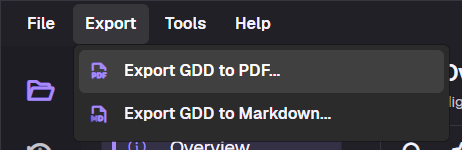
There is no format/theme selection dialog during export. The command uses the currently active PDF style.
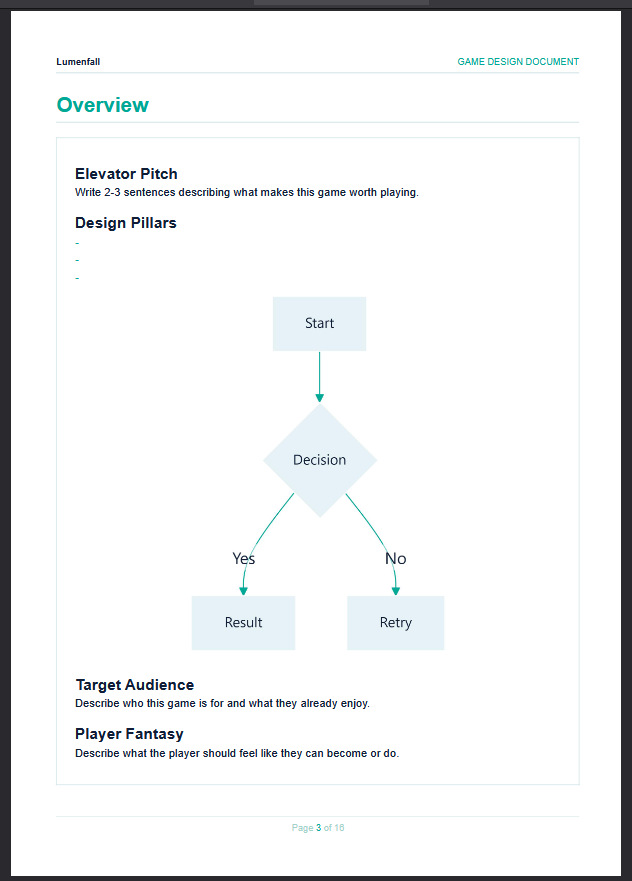
What the PDF contains
The exporter creates an A4 portrait document with:
- designed cover page;
- project logo, or a
GDDfallback when the logo cannot be loaded; - title, tagline, author or studio, genres, platforms, version, and export date;
- table of contents;
- sections in the exact workspace order;
- themed headers, footers, and page numbers;
- project changelog.
The shared supported content set includes headings, paragraphs, emphasis, strikethrough, inline code, lists, task lists, tables, blockquotes, fenced code, rules, standalone images, Mermaid diagrams, and styled link text.
The eight built-in PDF styles
| Style | Character | Good starting point |
|---|---|---|
| Publisher Pitch | Modern violet, strong cover hierarchy | External pitch or stakeholder review. |
| Studio Bible | Restrained charcoal, editorial clarity | Long internal design documents. |
| Blueprint | Technical blue and grid motifs | Systems-heavy or simulation designs. |
| Dark Cinematic | Dark, high-contrast red accents | Horror, sci-fi, cinematic projects. |
| Ink Bloom | Organic, warm, editorial palette | Fantasy, cozy, narrative, or art-led work. |
| Indie Comic | Bold borders and pop color | Stylized 2D, arcade, or playful projects. |
| Retro RPG | Parchment-inspired ornament | RPG, roguelike, or classic fantasy. |
| Nordic Frost | Crisp ice tones and tactical structure | Minimal, atmospheric, survival, or strategy. |
Use a built-in style directly or treat it as a starting point in the PDF Theme Designer.
Image behavior in PDF
- Relative images resolve from the directory containing the
.gddkitfile. - Absolute local paths and
file:URLs can work only where those files exist. - HTTP(S) images have an 8 MB limit and a 10-second request timeout.
- Missing or unreadable images produce a visible fallback rather than necessarily stopping the export.
- Put image Markdown on its own paragraph for reliable block rendering.
For stable delivery, use local project-relative assets. See Images.
Mermaid behavior in PDF
The desktop application renders Mermaid through its embedded WebView and inserts a high-resolution result. If rendering fails, the PDF can include readable source/fallback content instead of cancelling the entire document.
GDDKit 2.0.1 improves Linux/macOS Mermaid reliability and fixes Nordic Frost export issues. Update before diagnosing an old cross-platform PDF failure.
Why export can take time
Export runs behind a progress window that cannot close until the operation completes. Large documents, custom fonts, remote images, and several Mermaid blocks add work. Each unavailable remote image can wait up to its timeout.
If a document appears stuck:
- wait for the current render to finish;
- replace remote images with local files;
- test a copy with the most complex Mermaid block removed;
- update to the latest 2.x build;
- export to a local writable folder.
Import boundaries
In released v2, “open” means opening .gddkit. There is no general Markdown, PDF, Word/DOCX, HTML, or arbitrary JSON import workflow. PDF and Markdown exports are delivery formats, not round-trip project formats.