Sections & presets
Sections make one large design document navigable. Their order in the left pane is also their order in Markdown and PDF exports.
Starter sections versus add-section presets
GDDKit uses two related concepts:
- A new project starts with 12 full-document sections: Overview, Core Loop, Mechanics, Story, Characters, World & Lore, Art Direction, Audio Direction, UI / UX, Technical Specs, Scope, and Milestones.
- The Add Document Section dialog offers six specialized built-in presets, a blank custom option, and presets you saved yourself.
The six specialized presets are:
| Preset | Included design prompts |
|---|---|
| Boss Design | Encounter fantasy, arena, phases, attacks, counters, rewards, and a phase flowchart. |
| Weapon Spec | Fantasy, core stats, inputs, upgrades, VFX/SFX, balance, and a weapon-state diagram. |
| Quest Design | Offer/accept branches, objectives, flow, dialogue beats, rewards, fail states, and dependencies. |
| Enemy Archetype | Combat role, readability, behavior, attacks, weaknesses, spawning, variants, and AI states. |
| Level Brief | Purpose, goals, layout, gameplay beats, content list, art/audio notes, and completion criteria. |
| UI Screen Spec | Entry/exit, layout, loading/empty/error states, actions, validation, accessibility, and data. |
These are reusable building blocks, not the 12-section starter document.
Add a section
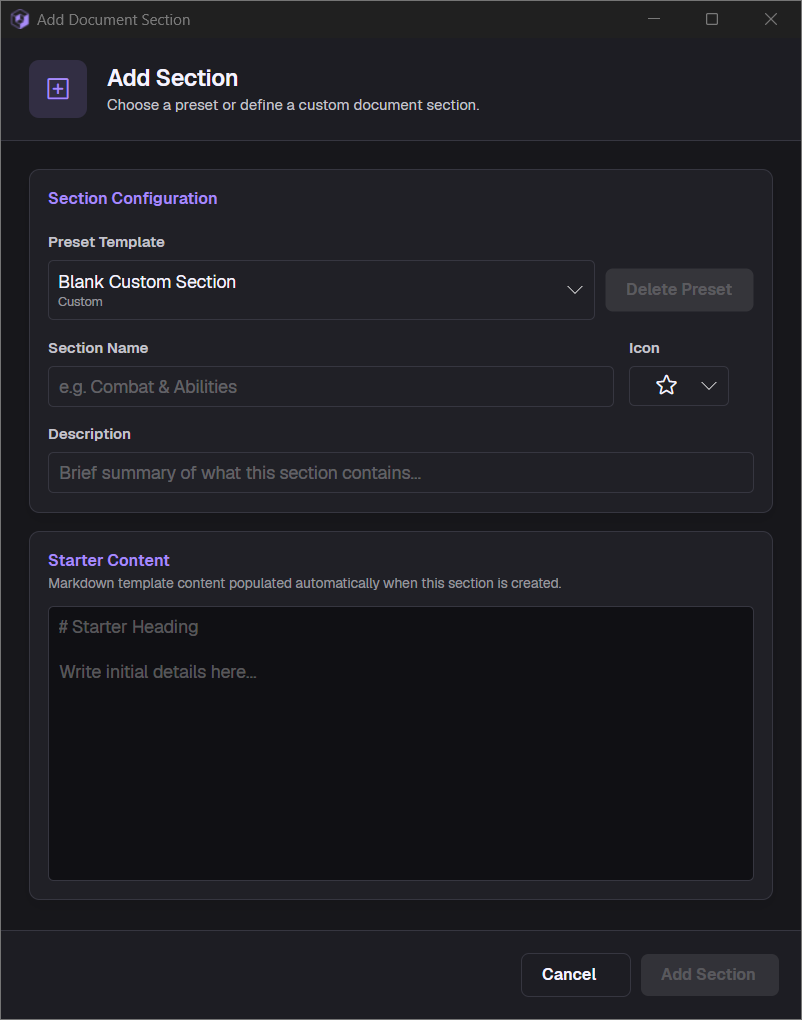
- Select the add button in the section pane.
- Choose a built-in preset, a saved preset, or
Blank Custom Section. - Edit the name, description, icon, and starter Markdown if needed.
- Confirm the dialog.
GDDKit generates a unique internal key. If a similarly named section already exists, it adds a suffix such as 2 or 3 rather than replacing that section.
The icon picker contains roughly 60 bundled Phosphor symbols covering common game-design concepts. Icons help scanning in the application, but do not substitute for a clear section name.
Reorder sections
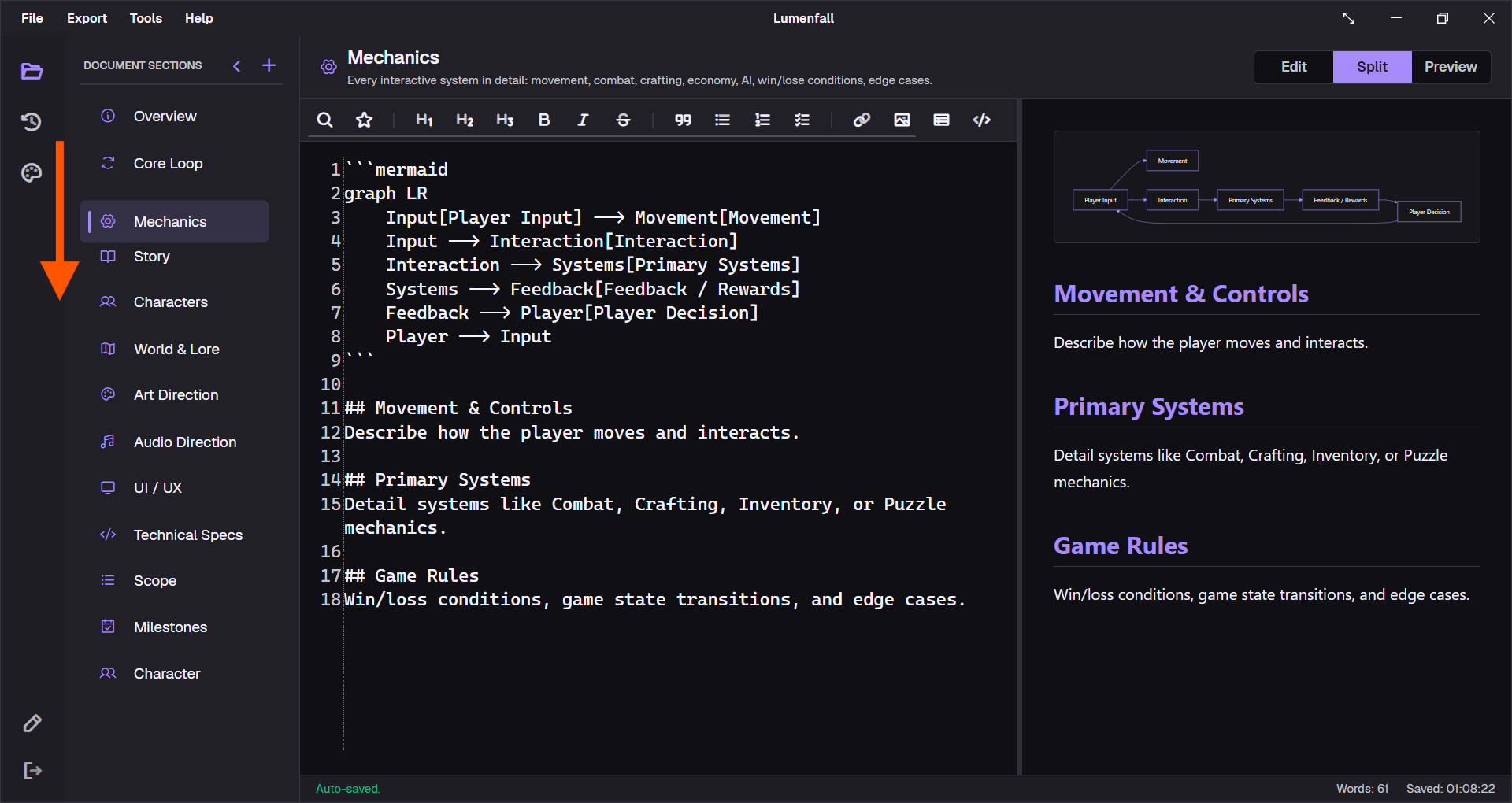
Drag a section card up or down and release it at the intended position. GDDKit updates the project order and marks the project dirty. Reordering works even when another section was previously selected; the moved section becomes selected when the move completes.
Edit a section
Right-click the section and choose Edit Section to change its display name, description, or icon. Save Changes does not replace the section’s current body. The dialog can show the definition’s Starter Content, but edit the Markdown of an existing section in the main editor.
Renaming does not create another section. The internal key and existing content remain associated with the edited definition.
Save a reusable preset
- Select the section containing the structure you want to reuse.
- Right-click and choose
Save as Preset. - The section name, description, icon, and current Markdown become a global saved preset.
- Open Add Document Section in any project and choose it from the saved group.
Saved presets live in global settings.json, not in the .gddkit project. Saving another preset with the same name replaces the existing one. Only user-saved presets can be deleted; bundled presets remain available.
For portable team templates, keep a canonical .gddkit sample or copy the global GDDKit settings folder. A project recipient does not automatically receive your saved preset library.
Delete a section safely
Delete is confirmed, removes the definition and content, and has no undo or “restore built-in section” command. GDDKit prevents deletion when only one section remains.
Before deleting a substantial section:
- save the project;
- copy its Markdown into a temporary file or commit the project;
- confirm that no other section links to its content;
- delete and save again.
If you later need the same category, add a blank or preset section and restore the content from your own history.