
Project setup & metadata
A GDDKit project combines product metadata, ordered document sections, and a changelog in one .gddkit file. Metadata appears in the workspace, Markdown export, and PDF cover, so set it deliberately before sharing a document.
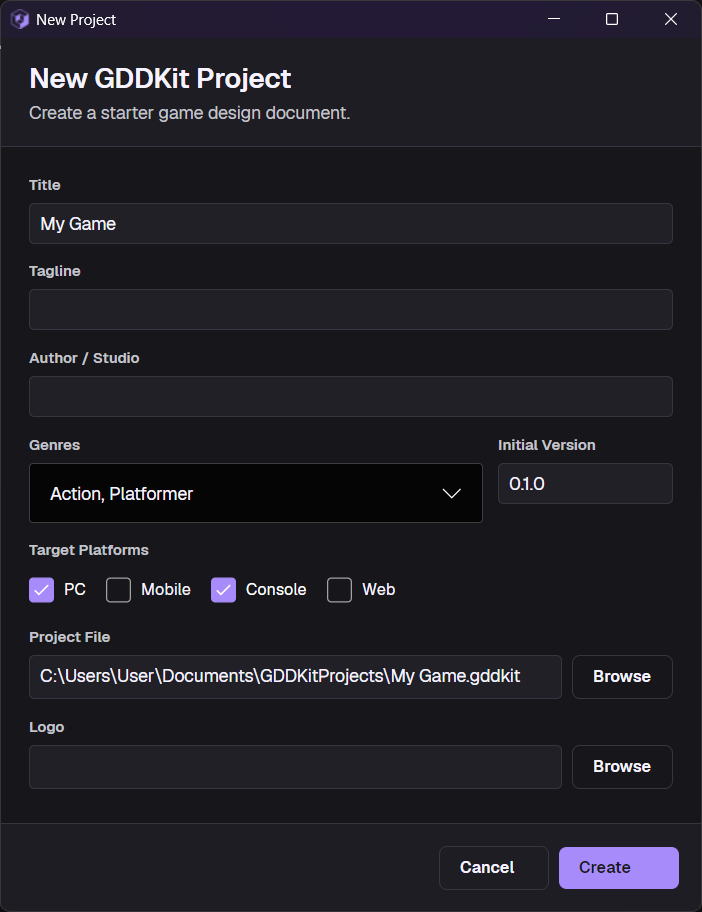
Project fields
| Field | Required | How v2 uses it |
|---|---|---|
| Project Title | Yes | Window title, recent card, Markdown heading, PDF cover and headers. |
| Tagline | No | Short pitch on the PDF cover and near the top of Markdown export. |
| Author / Studio | No | Attribution in exported metadata. |
| Genres | No | One or more catalog values shown on recent cards and exports. Defaults to Other. |
| Platforms | No | PC, Mobile, Console, and Web labels in exports. PC is selected in a new form by default. |
| Version | No | Starts at 0.1.0; used in metadata, exports, and the initial changelog entry. |
| Project Logo | No | Referenced on the home card and PDF cover; the original image is not embedded in .gddkit. |
| Project File | Generated | Local .gddkit save path. Use Browse to choose a non-default location. |
Choose multiple genres
The v2 catalog contains 50 values, from broad categories such as Action, Adventure, RPG, Strategy, Simulation, Shooter, and Puzzle to focused subgenres such as JRPG, CRPG, Tactical RPG, Roguelite, Metroidvania, Deckbuilder, Visual Novel, and Survival Horror.
- Select as many genres as describe the design.
Otheris removed when a specific genre is selected.- If you clear every selection,
Otheris restored. - A genre from an older project is preserved even when it is not in the current catalog.
Avoid treating the list as store taxonomy. Choose values that help readers interpret design decisions; a project can still describe exact market tags inside Overview.
Edit project details later
With a project open, choose Tools → Edit Project Details…. You can update title, tagline, author or studio, genres, platforms, version, and logo. Saving the dialog immediately saves the project and refreshes the PDF Theme Designer preview.
The 12-section starter document
Every new project begins with guided content in this order:
| Section | Prompt focus |
|---|---|
| Overview | Elevator pitch, design pillars, target audience, player fantasy. |
| Core Loop | Repeating player cycle, feedback, rewards, failure states. |
| Mechanics | Movement, controls, primary systems, rules, edge cases. |
| Story | Theme, tone, narrative arc, setup, conflict, climax, resolution. |
| Characters | Main characters, NPCs, enemies, factions, relationships. |
| World & Lore | Setting, locations, history, atmosphere, world rules. |
| Art Direction | Visual style, palette, references, UI aesthetic. |
| Audio Direction | Music mood, sound-effect direction, audio references. |
| UI / UX | Menu flow, HUD, controls, accessibility. |
| Technical Specs | Engine, tools, targets, performance, constraints, dependencies. |
| Scope | Must-have, nice-to-have, cut, and deferred features. |
| Milestones | Prototype, Alpha, Beta, release dates and goals. |
Several starter sections already contain Mermaid diagrams. They are editable examples, not locked system content. Rename, reorder, delete, or replace them to match the project.
Recent projects
GDDKit remembers up to ten successfully opened or saved project paths in the operating system’s local application-data folder.
- Selecting a card opens the project.
- Opening the same project moves it to the front of the list.
- Missing files and files that cannot be parsed are omitted.
- There is no v2 interface to manually delete an individual recent entry.
Filtering happens when cards are loaded; stale paths are not automatically removed from recent_projects.json. They can occupy one of the ten stored slots, so fewer than ten cards may be visible. Opening newer valid projects eventually pushes the oldest stored entries out.
If you move or rename a project, open it from File → Open Project… at the new path. The stale path stops appearing when GDDKit reloads the cards, while the new path is added to the stored list.
Naming and location advice
- Keep the
.gddkitfile and itsimages/folder inside one project directory. - Avoid putting the active project in two-way sync while two computers can edit it.
- Use a short filesystem-safe name; GDDKit replaces invalid filename characters with
-when generating a path. - If a generated filename already exists, GDDKit adds
2,3, and so on rather than overwriting it. - A logo path is external. After moving the project, reselect the logo if the PDF cover can no longer find it.
Read Files, assets & backups before adopting a shared-drive or Git workflow.