
Project Setup & Metadata
GDDKit projects are saved as .gddkit files. A .gddkit file is a self-contained, human-readable JSON document that stores all your text sections, changelog entries, custom section templates, and project metadata.
This makes it extremely easy to version control your design documents using Git or back them up using cloud drives.
Creating a New Project
To create a new GDD project:
- From the Home Screen, click Create New Project.
- The New Project Dialog will open:
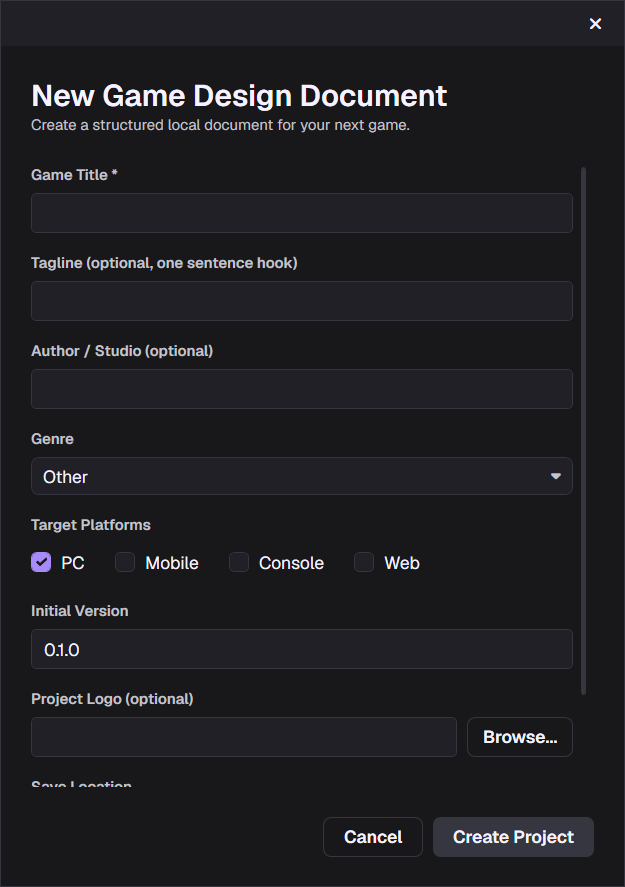 Figure 1: The New Project Form.
Fill in the metadata details:
- Project Title: The name of your game (e.g., Project Odyssey).
- Tagline: A short elevator pitch (e.g., A sci-fi tactical RPG set in deep space.).
- Author / Studio: Your name or the name of your game development studio.
- Genre: Select from a list (Action, RPG, Platformer, Puzzle, Strategy, Simulation, Adventure, FPS, Horror, Sandbox, Roguelike, Metroidvania, Sports, Racing, or Other).
- Platforms: Check all target platforms (PC, Console, Mobile, VR, Web, or Handheld).
- Project Logo: Select an image file (PNG/JPG) to represent your game. This logo will display on the Home Screen card and will be printed on your PDF cover page.
Once filled, choose a file destination and click Create. This will initialize the project and take you to the Editor View.
Editing Project Metadata
If you ever need to change your game’s title, tagline, target platforms, or logo path during development, you can update it at any time:
- Click the Edit Metadata button in the top menu bar (next to the project status).
- Modify your configurations.
- Click Save Changes.
Recent Projects List
GDDKit keeps track of up to 10 recently opened projects on your local machine.
- Each recent project is displayed as a card showing its custom logo, title, genre, and last modified timestamp.
- Clicking a card opens it immediately.
- Deleting Projects: You can right-click any recent project card to open a context menu and choose to delete it.
- If a project file is moved or deleted, GDDKit handles this gracefully and offers to remove the stale card from your list.
Safety and Backups
GDDKit is designed with an offline-first safety mechanism:
- When saving, the application writes to a temporary file (
.backup) first, verifying that writing was successful before replacing the original file. - If your system crashes or power cuts during a manual save, your primary GDD file remains safe, and a backup will reside next to it (
yourproject.gddkit.backup).