
Editor Interface
The core of the GDDKit workspace is the Editor Interface. It is designed to minimize distractions and let you focus entirely on your game mechanics and ideas.
Interface Layout
The editor screen is divided into three primary zones:
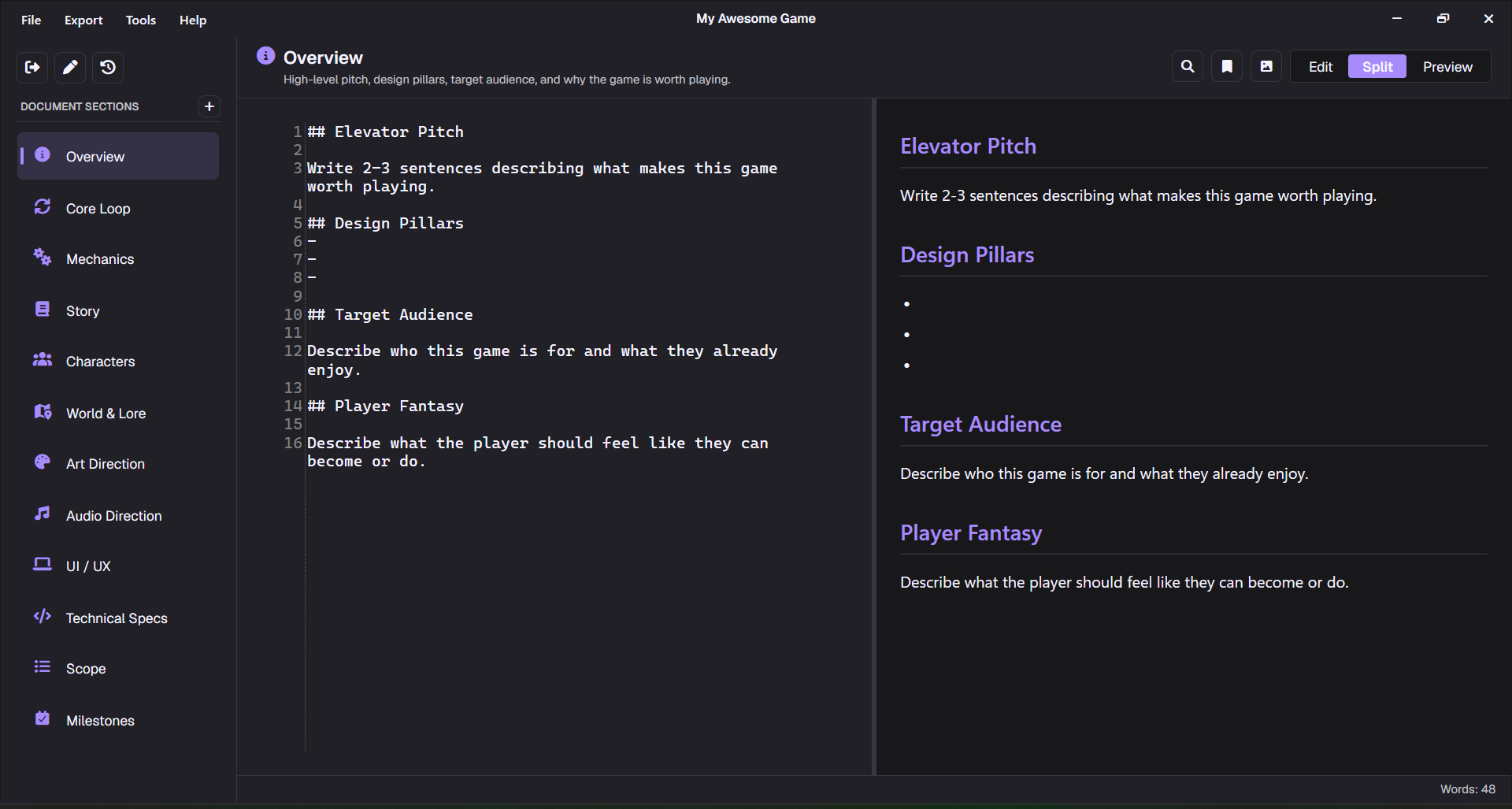 Figure 1: Editor Interface showcasing the Section Sidebar, Markdown Editor, and Live Preview.
1. The Left Sidebar (Sections Panel)
Shows the list of sections in your game design document. You can select sections to edit them, drag-and-drop to reorder them, add new sections, or delete existing ones.
2. The Center Pane (Markdown Editor)
A text editor optimized for Markdown syntax. It includes line numbering and highlights.
- You can customize the Editor Font Size in Settings to fit your screen resolution.
- Supports standard Markdown conventions (bold, italic, headers, tables, task lists, blockquotes, and code blocks).
3. The Right Pane (Live Preview)
A real-time rendered preview of your document. Powered by GDDKit’s Native Markdown Renderer, this view automatically parses your Markdown text, including:
- Standard HTML elements.
- WPF-native text formatting.
- Mermaid Diagrams (Flowcharts, mindmaps, state diagrams).
- Markdown lists, tables, and checklist elements.
Status Bar & Autosave
The top bar of the editor displays your project’s current save status:
- Saved: All changes are securely written to disk.
- Unsaved Changes: You have made edits that are not yet saved.
- Saving… / Auto-saved: GDDKit automatically saves your progress at regular intervals.
Editor Keyboard Shortcuts
Speed up your writing workflow with native hotkeys:
| Action | Shortcut | Description |
|---|---|---|
| Create New Project | Ctrl + N | Creates and initializes a new GDD project. |
| Open Existing Project | Ctrl + O | Opens a file dialog to browse for an existing .gddkit file. |
| Save Current GDD File | Ctrl + S | Manually writes all changes to the .gddkit file. |
| Close Current Workspace | Ctrl + W | Closes the active project and returns to the Home Screen. |
| Find Text | Ctrl + F | Search within the current active section text. |
| Toggle Preview Mode | Ctrl + E | Toggles the split-screen Markdown preview pane. |
| Paste Text or Image | Ctrl + V | Paste text content or images directly into the active editor. |
| Search Results / Close Search | Up/Down, Enter, Esc | Navigate search matches or close the active search panel. |